Showing posts with label Blog technology and other apps. Show all posts

Sunday, May 15, 2011

iPhone is for babies

We’re relaxing this rainy, icky Sunday.  And to keep Peanut entertained I decided to download a couple of baby apps on my iPhone.

New toys 055

She loved them.

New toys 057

She figured out how to switch between pictures almost immediately.

New toys 062

Does anyone else see a problem here?

New toys 065

Like the fact that I’ll never be able to use my iPhone freely again?

New toys 071

Or that I will be spending a fortune on electronics for the rest of this one’s life…

Thursday, April 28, 2011

Instagram

One of my favorite bloggers, Marriage Confessions, recently posted about Instagram.

So, because I'm my own person and don't give in to peer pressure, I joined.

Visiting Peanut at Daycare during my lunch break

And now I'm addicted.

Sending daddy a message

In case you haven't heard about it, it's a photo sharing application for iPhones and iPads that lets you share tid-bits of your day.

Home!

So if you want to see my millions of pictures of Peanut and our day, follow me (cking9365).

Thursday, July 22, 2010

New: a button!

Check out the new button!
You can grab it by grabbing this code:

<a href="http://www.livinglikethekings.com">
<img src="http://farm5.static.flickr.com/4122/4810794684_8600b7facf_m.jpg" />
</a>
 
And it was SUPER easy!

Make your own:
  1. Start by creating an image of what you want your button to look like and save it as a jpeg
  2. Size it down to about 125 x 125 pixels
  3. Upload it to a public site liek flickr, picasa, or photobucket
  4. Grab the link to your image and update the code in red below to suit your own:
for the button:
<a href="http://www.livinglikethekings.com">
<img src="http://farm5.static.flickr.com/4122/4810794684_8600b7facf_m.jpg" />
</a>
for the code:
<form action="" name="form2" method="post">
  <textarea rows="3" cols="12" name="textarea"><a href="http://www.livinglikethekings.com">
<img src="http://farm5.static.flickr.com/4122/4810794684_8600b7facf_m.jpg" />
</a>
  </textarea>
</form> 

If you have blogger, you can insert all that code into an HTML/Javascript Gadget (minus the bold titles...you'll want to erase those).

Monday, June 7, 2010

Google Analytics

Thought I'd share my love for Google Analytics with all you other bloggers out there.

If you're interesting in finding out a little more about your traffic, visitors, or the statistics of your blog, this is a must-have for bloggers.  There are many choices for analytical tools out there, but this one's my fav.


It shows you information regarding your website, be it a public site, a blog, or whatever else you want.  As long as you can enter code into it (and in a blog, you can), then you can set up Google Analytics in just a couple of minutes.

I'll show you a little more and then walk you through the simple set up.

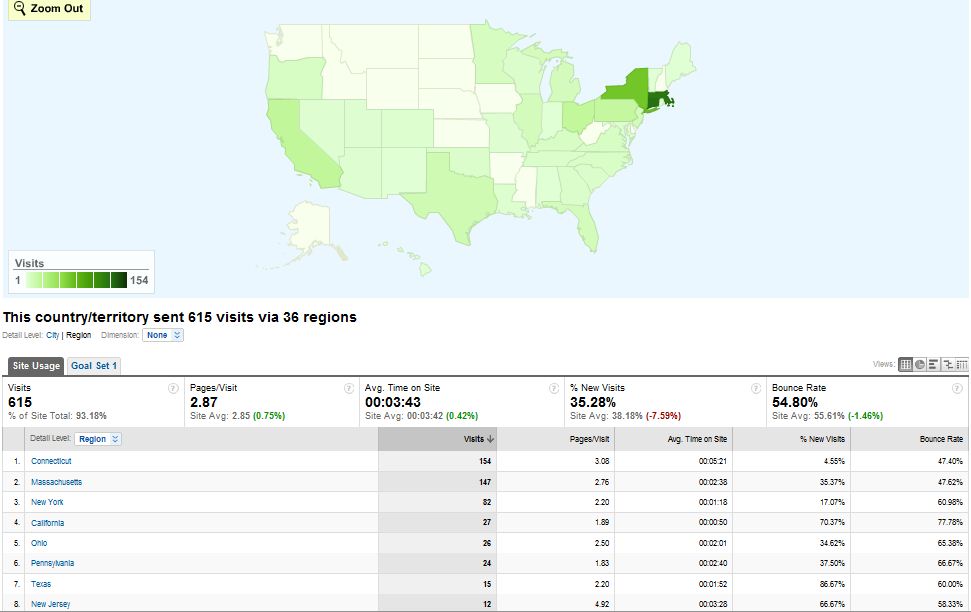
Check this out:

This is a map of the US with a color code that tell you where the majority or my visitors come from.  I like this feature because it's puuurty.  It's also totally cool to see when someone from a state that you know noone from visited you!  I get very excited about my analytics.

And this one here:

This one tells you all sorts of stuff like how many visitors you have, how long they stay on your site, how many new visits there are and even what browser they used.

This one here is one of my favs:

It tells you what keywords people used to get to your site and what referring sites sent them there.

I love knowing this stuff not just because it's cool, which, trust me, it is.  But also it helps me figure out what things interest my readers.  Plus it's addicting.

Now here is what you need to get started.
  1. Go here.
  2. Create an account if you don't already have one.
  3. Create a new profile and domain (it walks you right through it).
  4. Grab the code that it gives you and place it on your site.

Now this isn't as hard as it looks.  Just go to your website or blog and find a way to edit the HTML.  If you have blogger, just click Design and then choose Edit HTML.
 
Now search for </head> inside all the text and copy/paste the code from Google Analytics right before this.  Hit save.


Voila! You are done!  Now that wasn't so hard, was it?


Now you just have to wait a few hours for the code to do its magic and in no time you'll be going back to Google Analytics to check on your visitors.


If you want some more help or have some more specific questions, feel free to e-mail me at cking9365@gmail.com

Thursday, April 29, 2010

Mint.com

I want to share my biggest budgeting secret with you.  Actually, it's really not a secret since I tell everyone who will listen about it.

Anyways, it's Mint.com.  Mint is this completely and totally awesome website that will allow you to link all of your accounts from credit cards to checking accounts to savings to 401K to car financing to student loans.  I can keep going but I'll spare you and let you discover it for yourself. 

The best part is that you don't have to go and label everything or download things every week/month.  It loads everything from your accounts and takes the best guess at labeling the transactions.


I won't show you our spending but here's a sample.  You can let Mint go ahead and label all these for you, or you can even create your own personalized labels!  Jon and I have set "fun" budgets that we also track under "Shopping".   Then when you're all done having fun labeling your transactions, you can go over to the next tab - Planning.


Okay.  This is a bit embarrassing.  You see, the red means that you spent more than you budgeted for.  I seriously promise that I have good reason.  Like mortgage - well...there isn't anything I can do about that one.  Sometimes it hits a couple days early but it'll straighten out after next month.  And The gas thing...yeah.  Ugh, apparently we drive a lot but we have all these weddings and babies to see.  Anyways.  Yellow means that you're almost at the limit.  This is good for us most times.  Green means you have room to spend.  There are like 25 other accounts below that you don't see - there are more green lines, I swear.

In any case, the Planning tab lets you set up budgets for the month and points out how much savings you'll have.  When you first get started Mint even hints at the budgets you should set up based on your spending averages.  Yeah.  It's that good.

In addition to those, there is a Trend tab that allows you to compare to previous months overall or by certain labels.  It also lets you view pie charts, bar charts, whatever you want charts.  It lets you view items by month or compare them to regional and national trends.  You can click on pieces and it'll take you over to the Transaction tab to show you what makes up each label.

Next there is an Investment and Ways to Save tab that shows your credit cards, 401k accounts, etc that let you view other ways that you see other ways you can save by switching to more points or cash backs or whatever.  I think this is how they make their money but it's still kind of really cool.

The first tab lets you view summaries of all that in one place.   It also e-mails you notifications like when it's time to pay your bills or when you're over the budget.   It's great like that.  I love it.  I check it daily.  The end.

Button

Current Giveaway

Current Giveaway
$25 Amazon.com Gift Card

My Peeps

Tweet tweet

Facebook

Blogs I follow

I-was-featured-button Photobucket
Thoughts from an Evil Overlord
 
Designs by Munchkin Land Designs. Copyright 2011. All rights reserved.